Introduction
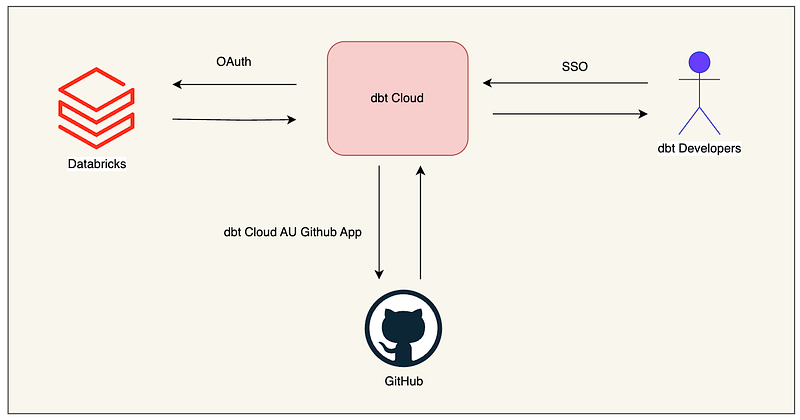
In this article, we will walk through the steps required to set up dbt (data build tool) Cloud using Databricks as your data warehouse. This setup allows you to leverage the power of Databricks for data transformations while managing your projects and workflows in dbt Cloud.
Prerequisites
Before starting, ensure you have:
- A Databricks account
- A GitHub account
- Access to dbt Cloud
- Necessary permissions for OAuth and SSO configurations
Step-by-Step Guide
1. Connect Databricks with OAuth
First, establish a connection between your Databricks workspace and dbt Cloud using OAuth.
- Log in to your Databricks account.
- Navigate to
Admin Console>User Settings. - Under
Access Tokens, generate a new token and copy it. - In another tab, log in to your dbt Cloud account.
- Go to
Account Settings>Integrations. - Select
Databricksand click onConnect. - Paste the token generated from Databricks into the required field in dbt Cloud.
2. Configure Single Sign-On (SSO)
Next, configure Single Sign-On (SSO) for seamless access management for your team of developers.
- In your identity provider’s admin console (e.g., Okta), create a new SAML application for dbt Cloud.
- Obtain the SAML metadata URL or XML file from your identity provider.
- In another tab, go back to
Account Settings>SSOin dbt Cloud. - Upload the SAML metadata or paste the URL.
- Complete the SSO configuration by following the prompts.
3. Integrate GitHub with dbt Cloud
To manage your dbt projects, integrate GitHub with dbt Cloud.
- In your dbt Cloud account, go to
Account Settings>Integrations. - Select
GitHuband click onConnect. - Authorize dbt Cloud to access your GitHub repositories.
- Choose the repository where your dbt project is stored.
4. Set Up Your dbt Project
Now, set up your dbt project in dbt Cloud.
- In dbt Cloud, go to
Projectsand click onNew Project. - Select your GitHub repository and branch.
- Configure your project settings, including the target schema and database.
- Save your project settings.
5. Run and Schedule Jobs
Finally, run and schedule your dbt jobs in dbt Cloud.
- In your dbt Cloud project, go to
Jobsand click onNew Job. - Configure the job settings, including the commands to run and the schedule.
- Save and activate the job.
This article was originally published at https://medium.com/@aradsouza/dbt-cloud-setup-guide-with-databricks-592b23a98007